Appearance
Step 6: Gmail Creation
Fresh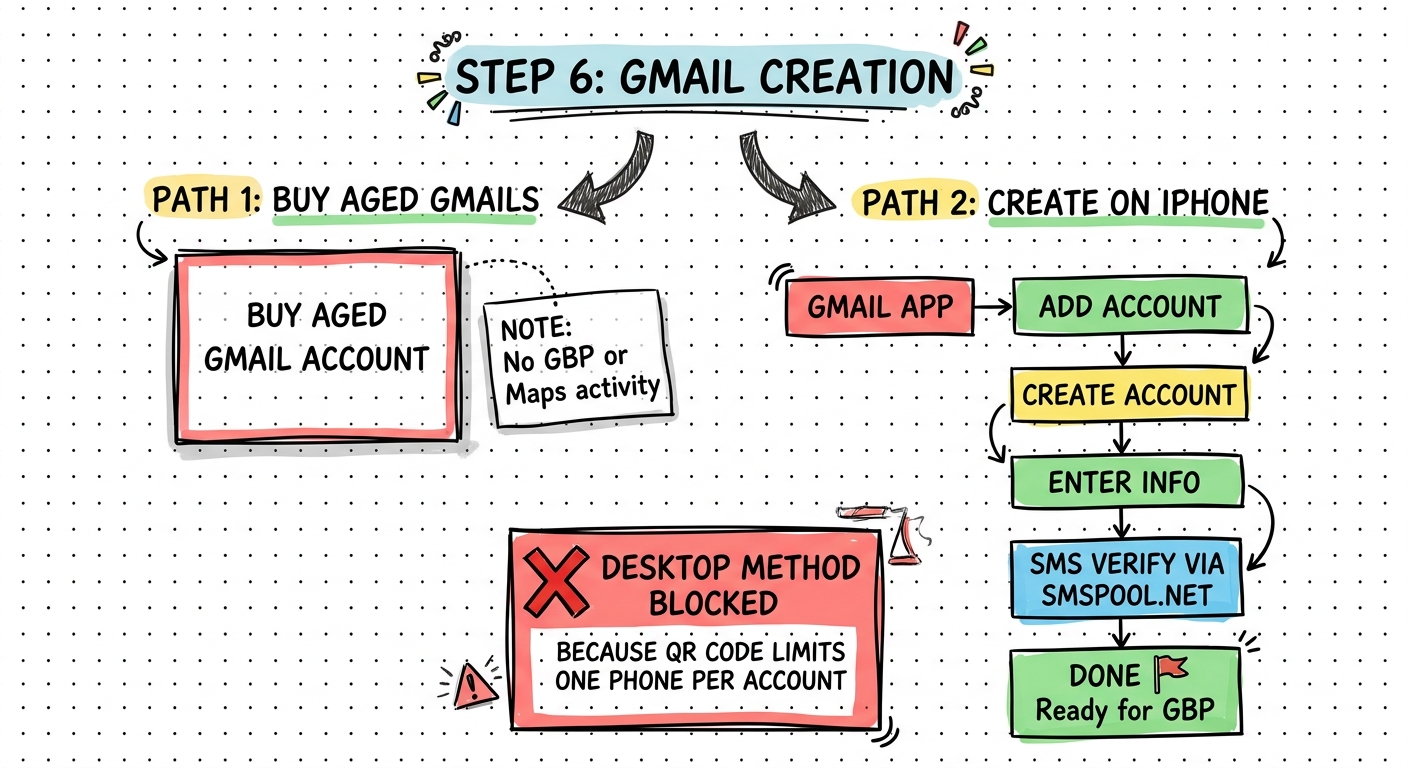
Overview
You need a Gmail account to verify the GBP listing. Either buy an aged account or create a fresh one on the iPhone Gmail app.
Procedure
Option A: Buy Aged Gmail Accounts
- Find a reliable provider for aged Gmail accounts
- Accounts should be 4-8 years old
- Verify the account has no GBP activity and no Maps activity
- If it has any business profile or Maps contributions, do not use it
Hard to Source
Reliable aged Gmail providers are difficult to find. Verify every account before using it.
Option B: Create on iPhone Gmail App
- Open the Gmail app on iPhone
- Tap your profile icon then Manage Google Account
- Tap Add Another Account
- Select Google then Continue
- Tap Create Account then For My Personal Use
- Enter a first name and last name
- Enter a birthday and gender
- Choose or create a Gmail address
- Create a password
SMS Verification:
- When prompted for a phone number, go to smspool.net
- Log in and click Quick Order
- Select service: Gmail
- Select country: US
- Copy the provided phone number
- Paste it into the Gmail app
- Wait for the SMS code to appear in SMSPool
- Enter the code in the Gmail app
Daily Limit
Only create 3-4 Gmail accounts per day. Creating too many will trigger Google's anti-spam measures.
Option C: Desktop Creation (Not Recommended)
Desktop Gmail creation requires a QR code that connects to your phone. You can only link one account per phone, making this method not scalable.
Fresh vs Aged
Fresh accounts created with this method work well. Aged accounts with no activity also work. The key is no prior GBP or Maps activity.
Tools Used
| Tool | Purpose |
|---|---|
| Gmail App (iPhone) | Account creation |
| smspool.net | SMS verification numbers |
Output
At the end of this step you should have:
- A Gmail account with no GBP or Maps activity
- The Gmail credentials saved securely
- The account ready for use in GBP verification
Next Step: Step 7: Category Framing