Appearance
Step 5: Index The Website
Fresh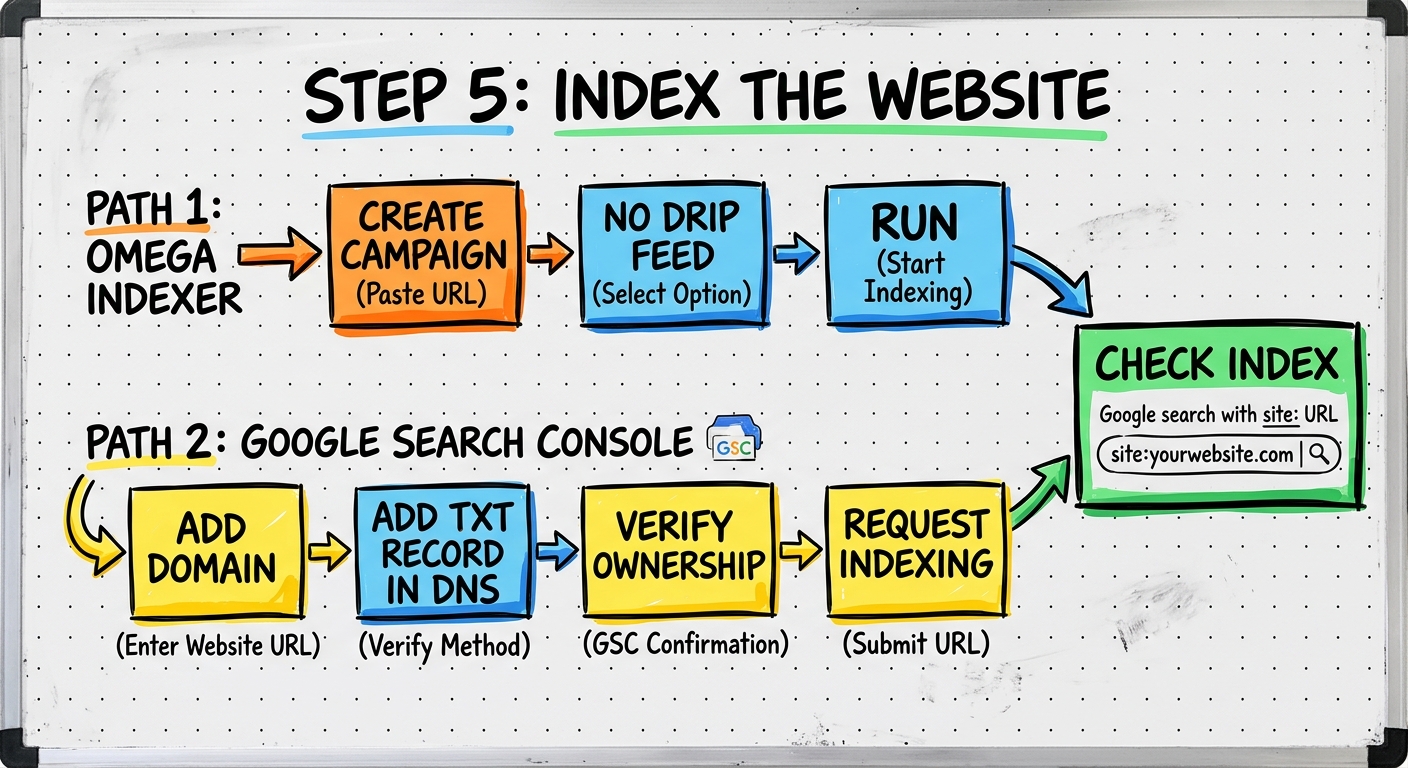
Overview
Getting the website URL indexed in Google is critical to the effectiveness of the method. Use both Omega Indexer and Google Search Console for fastest results.
Procedure
Method 1: Omega Indexer
- Go to omegaindexer.com and log in
- Click Campaigns then Create Campaign
- Name the campaign (e.g., your business name)
- Click Copy and Paste Links
- Paste your website URL
- Set drip feed slider all the way to No Drip Feed (index ASAP)
- Click Create and Run
Cost
Omega Indexer charges 1 credit per URL. Plans start at about $60 for 400 credits.
Method 2: Google Search Console
- Go to
search.google.com/search-console - Enter just the domain (not full URL) in the domain property field
- Click Continue
- Copy the TXT record provided
Add DNS Record in SiteGround:
- Go to SiteGround then Domain then DNS Zone Editor
- Find the existing TXT record (starts with
v=spf1) - Click the pencil icon to edit
- Delete existing content and paste the verification code
- Click Confirm
Verify and Index:
- Go back to Search Console
- Click Verify (may need to wait 1-2 minutes)
- Once verified, click Go to Property
- Paste the full URL in the search bar
- Click Test Live URL
- Click Request Indexing
How to Check If Indexed
- Omega Indexer: Check campaign status for "Indexed" label
- Google Search: Type
site:yoururl.com— if results appear, it is indexed
Do Not Skip This Step
Wait for the URL to be indexed before proceeding to the verification steps. The method is significantly more effective when Google already knows about the site.
Tools Used
| Tool | Purpose |
|---|---|
| Omega Indexer | Automated URL indexing service |
| Google Search Console | Direct indexing request to Google |
| SiteGround | DNS record management |
Output
At the end of this step you should have:
- URL submitted to both Omega Indexer and Google Search Console
- URL appearing in Google search results (may take up to 24 hours)
Next Step: Step 6: Gmail Creation